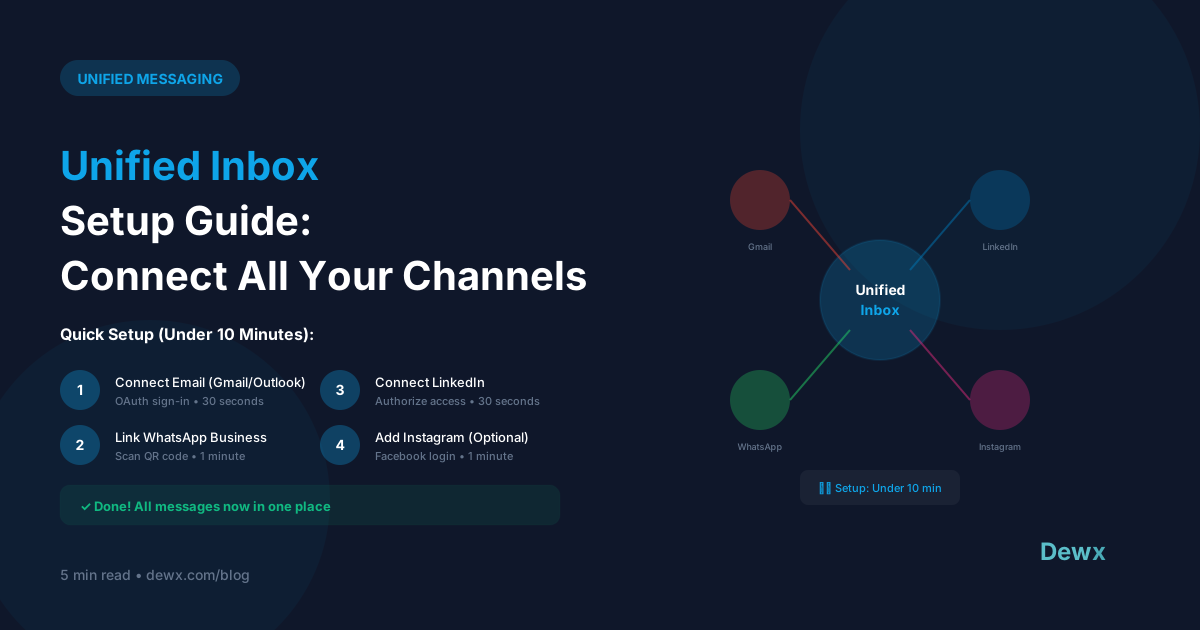
Unified Inbox Setup Guide: Connect All Your Channels
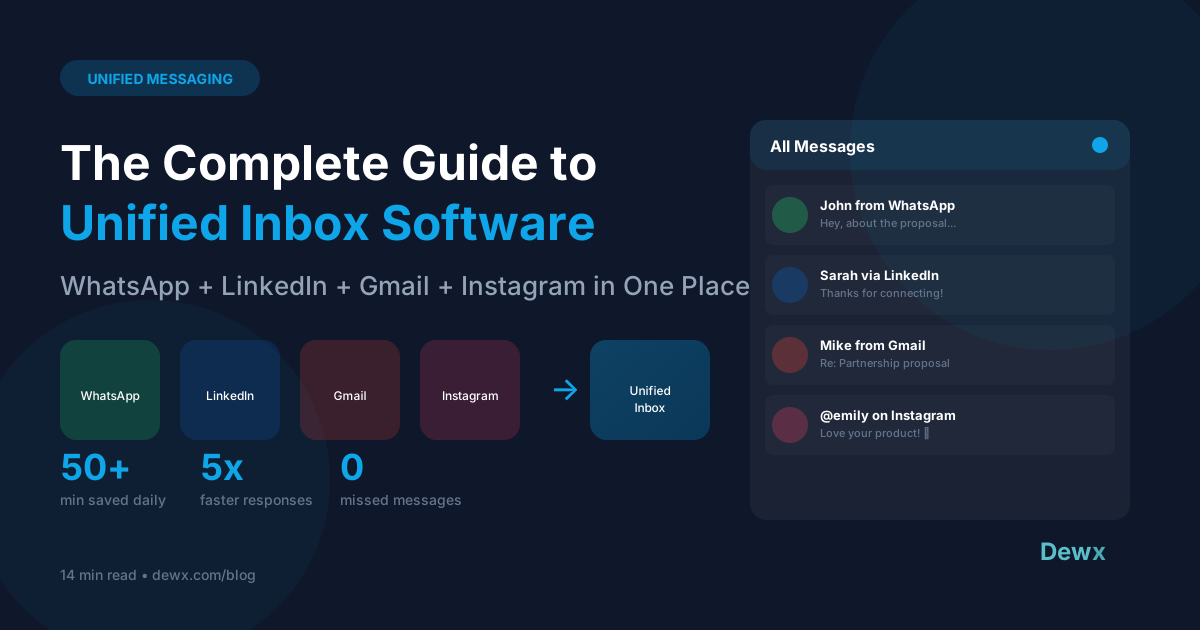
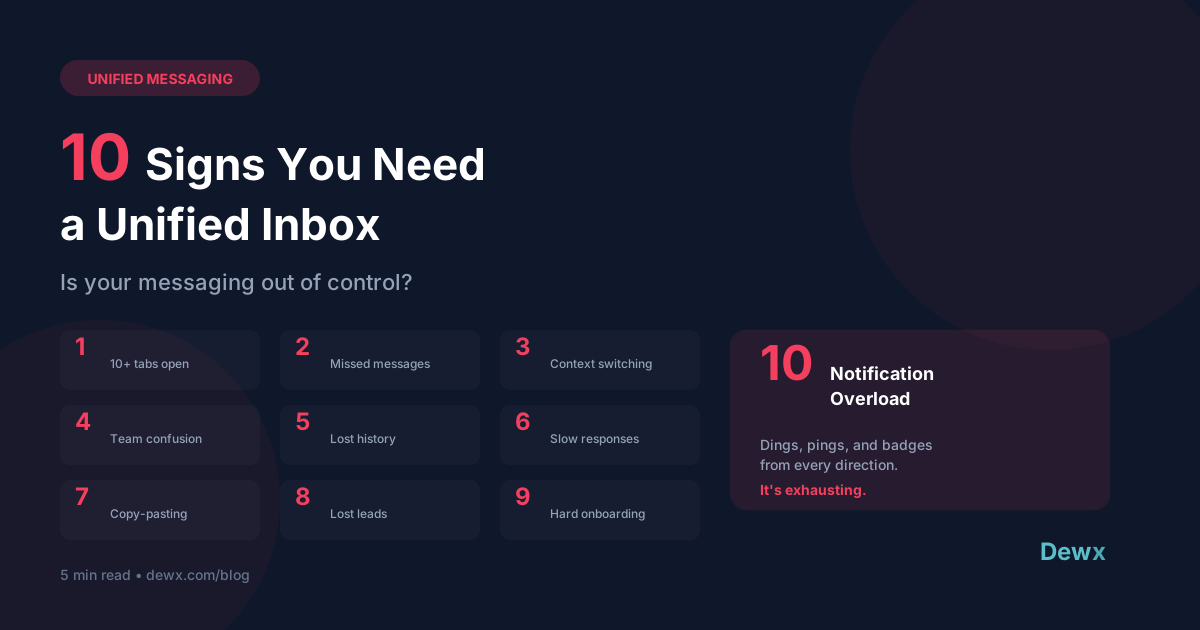
Ready to escape inbox chaos? Here's your complete guide to setting up a unified inbox.
Before You Start: Preparation
1. Audit Your Current Channels
List every platform where you receive messages:
- WhatsApp (personal and/or business)
- Gmail
- Outlook
- Other (Facebook, Twitter, SMS)
2. Gather Credentials
You'll need login access for each platform. For some, you'll need:
- API keys (WhatsApp Business API)
- OAuth permissions (Gmail, Outlook)
- Admin access (Instagram Business)
3. Define Your Goals
What do you want to achieve?
- Faster response times
- Team collaboration
- Better organization
- Reduced context switching
- All of the above
Step-by-Step Setup
Step 1: Choose Your Platform (5 minutes)
Compare unified inbox solutions:
- Dewx Portal: WhatsApp, LinkedIn, Gmail, Instagram, Outlook + AI
- Front: Email-focused, team collaboration
- Intercom: Chat-focused, customer support
- Zendesk: Enterprise ticketing
For most SMBs, Dewx offers the broadest channel coverage.
Step 2: Connect Email (10 minutes)
Gmail:
- Click "Connect Gmail"
- Sign in with Google
- Grant permissions for read/write access
- Confirm sync settings
Outlook:
- Click "Connect Outlook"
- Sign in with Microsoft
- Authorize Dewx application
- Confirm sync settings
Step 3: Connect WhatsApp (15 minutes)
WhatsApp Business API:
- Ensure your business is verified with Meta
- Navigate to WhatsApp integration
- Scan QR code or enter API credentials
- Test with a sample message
Note: WhatsApp Business API requires Meta business verification.
Step 4: Connect LinkedIn (10 minutes)
- Click "Connect LinkedIn"
- Sign in with LinkedIn credentials
- Authorize Dewx to access messages
- Confirm which account(s) to connect
Step 5: Connect Instagram (10 minutes)
Requirements: Instagram Business or Creator account linked to a Facebook Page
- Click "Connect Instagram"
- Sign in with Facebook
- Select your Instagram account
- Grant DM access permissions
Step 6: Configure Settings (10 minutes)
Notifications:
- Choose which channels trigger notifications
- Set quiet hours
- Configure mobile vs desktop alerts
Organization:
- Create labels/tags for categories
- Set up auto-assignment rules
- Configure default views
Team Access:
- Invite team members
- Set permissions
- Define shared vs personal inboxes
Post-Setup Checklist
- Send a test message from each channel
- Verify messages appear in unified inbox
- Test reply functionality
- Set up quick response templates
- Configure notification preferences
- Train team on new workflow
Common Setup Issues
Issue: Messages Not Syncing
Fix: Check API permissions, re-authenticate if needed
Issue: Can't Connect WhatsApp
Fix: Ensure you're using WhatsApp Business API, not personal WhatsApp
Issue: LinkedIn Shows Limited Messages
Fix: LinkedIn API has rate limits; older messages may not sync
Maximizing Your Unified Inbox
Once set up, optimize your workflow:
- Use AI features. Let Dew draft responses
- Create templates. Save time on common replies
- Set up automations. Route messages automatically
- Review analytics. Track response times and volume
For more on channel-specific optimization, check out our guides on managing multiple WhatsApp accounts and Instagram DM marketing.
Frequently Asked Questions
How long does unified inbox setup take?
For most businesses, full setup takes 30-60 minutes. Email connections (Gmail, Outlook) take 5-10 minutes each. WhatsApp Business API requires Meta verification which can take 2-3 days if you're not already verified. Once verified, connection is instant.
Do I need business accounts for all channels?
For full functionality, yes. Instagram requires a Business or Creator account. WhatsApp requires WhatsApp Business API (not personal WhatsApp). LinkedIn works with personal or Sales Navigator accounts. Email works with any Gmail or Outlook account.
What happens if a channel stops syncing?
Most sync issues are resolved by re-authenticating the connection. Dewx Portal shows connection status for each channel and alerts you if authentication expires. You can reconnect with a few clicks.
Can I delete the original apps after setup?
You can reduce usage, but keep apps installed as backup. Some platforms (especially WhatsApp) require the app for initial setup and occasional re-authentication. After setup, you'll do 90%+ of your messaging from the unified inbox.
How do I handle team access and permissions?
Dewx's team features let you invite team members with role-based permissions. You can set up shared inboxes for specific channels, assign conversations to team members, and track who handled which messages. Learn more about team collaboration.
Ready to get started? Sign up for Dewx and connect your channels in minutes.