
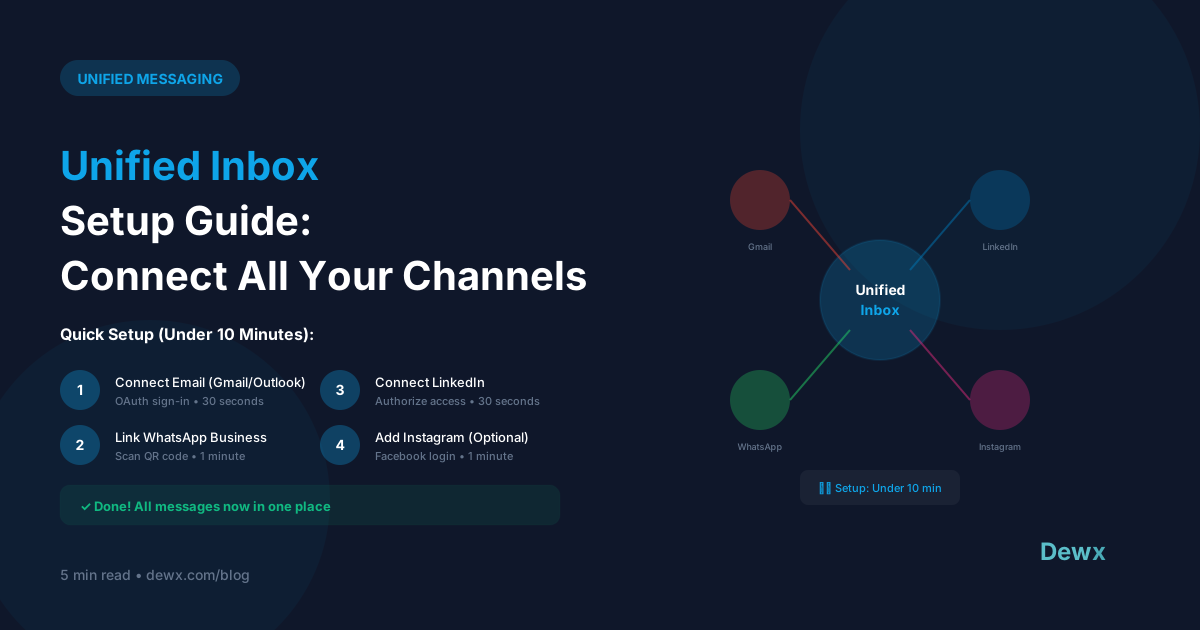
Unified Inbox Setup Guide: Connect All Your Channels
Ready to escape inbox chaos? Here's your complete guide to setting up a unified inbox.
Before You Start: Preparation
1. Audit Your Current Channels
List every platform where you receive messages:
- WhatsApp (personal and/or business)
- Gmail
- Outlook
- Other (Facebook, Twitter, SMS)
2. Gather Credentials
You'll need login access for each platform. For some, you'll need:
- API keys (WhatsApp Business API)
- OAuth permissions (Gmail, Outlook)
- Admin access (Instagram Business)
3. Define Your Goals
What do you want to achieve?
- Faster response times
- Team collaboration
- Better organization
- Reduced context switching
- All of the above
Step-by-Step Setup
Step 1: Choose Your Platform (5 minutes)
Compare unified inbox solutions:
- Dewx Portal: WhatsApp, LinkedIn, Gmail, Instagram, Outlook + AI
- Front: Email-focused, team collaboration
- Intercom: Chat-focused, customer support
- Zendesk: Enterprise ticketing
For most SMBs, Dewx offers the broadest channel coverage.
Step 2: Connect Email (10 minutes)
Gmail:
- Click "Connect Gmail"
- Sign in with Google
- Grant permissions for read/write access
- Confirm sync settings
Outlook:
- Click "Connect Outlook"
- Sign in with Microsoft
- Authorize Dewx application
- Confirm sync settings
Step 3: Connect WhatsApp (15 minutes)
WhatsApp Business API:
- Ensure your business is verified with Meta
- Navigate to WhatsApp integration
- Scan QR code or enter API credentials
- Test with a sample message
Note: WhatsApp Business API requires Meta business verification.
Step 4: Connect LinkedIn (10 minutes)
- Click "Connect LinkedIn"
- Sign in with LinkedIn credentials
- Authorize Dewx to access messages
- Confirm which account(s) to connect
Step 5: Connect Instagram (10 minutes)
Requirements: Instagram Business or Creator account linked to a Facebook Page
- Click "Connect Instagram"
- Sign in with Facebook
- Select your Instagram account
- Grant DM access permissions
Step 6: Configure Settings (10 minutes)
Notifications:
- Choose which channels trigger notifications
- Set quiet hours
- Configure mobile vs desktop alerts
Organization:
- Create labels/tags for categories
- Set up auto-assignment rules
- Configure default views
Team Access:
- Invite team members
- Set permissions
- Define shared vs personal inboxes
Post-Setup Checklist
- Send a test message from each channel
- Verify messages appear in unified inbox
- Test reply functionality
- Set up quick response templates
- Configure notification preferences
- Train team on new workflow
Common Setup Issues
Issue: Messages Not Syncing
Fix: Check API permissions, re-authenticate if needed
Issue: Can't Connect WhatsApp
Fix: Ensure you're using WhatsApp Business API, not personal WhatsApp
Issue: LinkedIn Shows Limited Messages
Fix: LinkedIn API has rate limits; older messages may not sync
Maximizing Your Unified Inbox
Once set up, optimize your workflow:
- Use AI features. Let Dew draft responses
- Create templates. Save time on common replies
- Set up automations. Route messages automatically
- Review analytics. Track response times and volume
Ready to get started? Sign up for Dewx and connect your channels in minutes.